Step-by-step Plugin Installation Guide for Seamless Integration
step-by-step plugin installation guide designed for local businesses and startups.
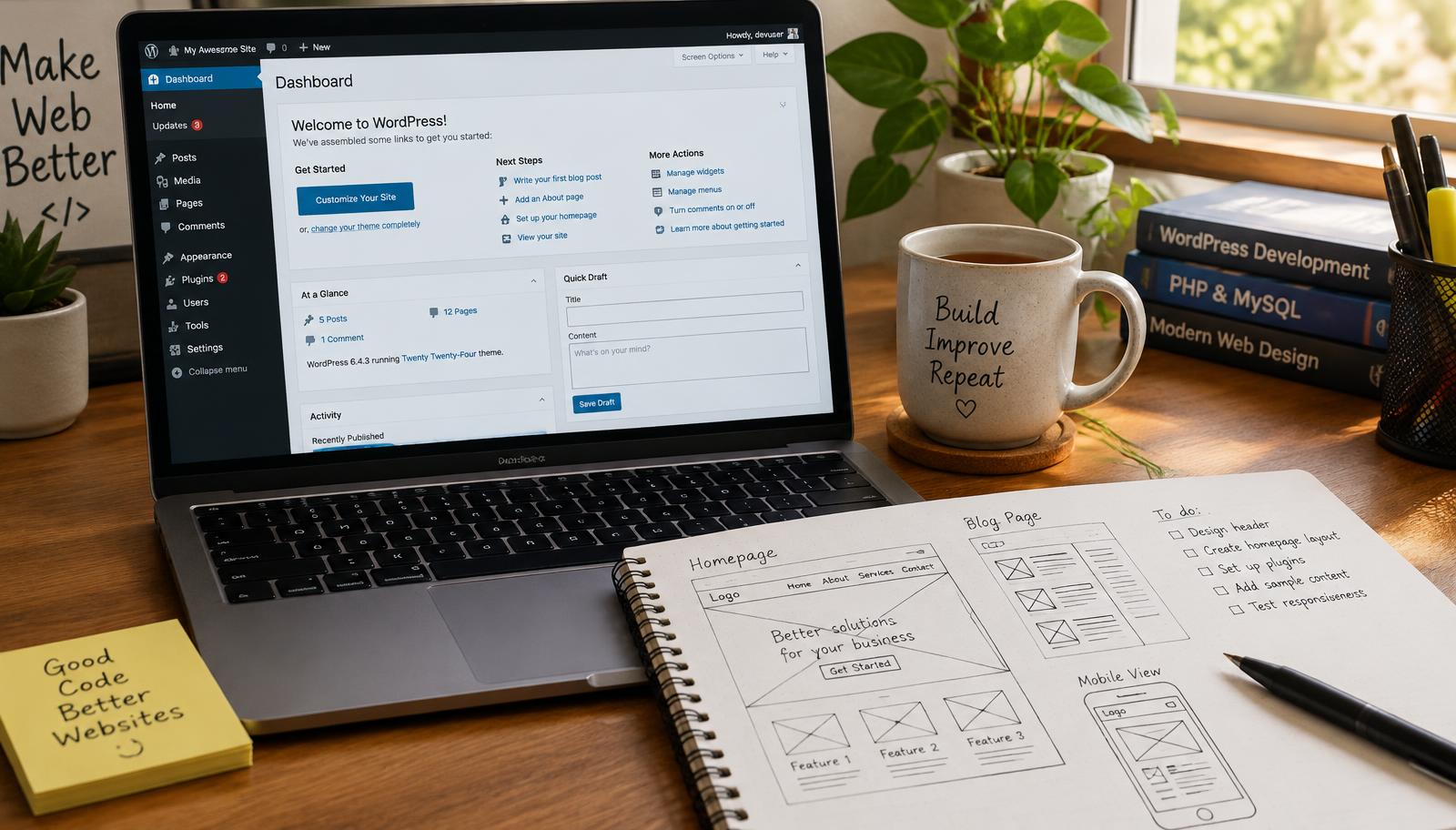
Step-by-Step Plugin Installation Guide
Installing a WordPress plugin can enhance your website's functionality significantly. This step-by-step plugin installation guide will walk you through the process, ensuring that you understand each stage clearly. By following these steps, you can effectively add new features to your site while maintaining its performance and security.
WordPress Plugin Management
Effective management of plugins is crucial for optimal website performance. Start by accessing your WordPress dashboard and navigating to the "Plugins" section. Here, you'll find options to view installed plugins, add new ones, or manage existing installations. Regularly reviewing this area helps ensure that only necessary plugins are active, reducing potential conflicts and enhancing site speed.
When selecting plugins, prioritize those with positive reviews and regular updates from developers. This practice minimizes compatibility issues with your current theme or other plugins. Always check for user feedback regarding any known bugs or support responsiveness before installation.
Troubleshooting Plugins
Even after careful selection, issues may arise post-installation due to conflicts or misconfigurations. If a plugin causes problems such as slow loading times or error messages, first deactivate it from the "Plugins" menu in your dashboard. Reactivating one at a time allows you to pinpoint which plugin is causing the issue.
For troubleshooting:
- Clear your browser cache.
- Check for JavaScript errors using developer tools.
- Review server logs if available.
- Ensure that all other plugins are updated alongside the problematic one.
By systematically addressing these areas, you can resolve most common plugin-related issues without extensive technical knowledge.
Plugin Compatibility Checks
Before installing any new plugin, verifying its compatibility with your current version of WordPress is essential for avoiding future complications. Most reputable plugins display their compatible versions on their download page within the WordPress repository.
To perform a compatibility check:
- Visit the official WordPress Plugin Directory.
- Search for the desired plugin.
- Review details about recent updates and compatibility notes listed under "Requires."
Additionally, consider using staging environments where possible; this allows testing of new plugins without affecting your live site directly.
Checklist for Successful Installation
- Verify compatibility with current WordPress version.
- Read user reviews and ratings thoroughly.
- Ensure no conflicting plugins are active during installation.
- Backup your website before adding new functionalities.
Frequently asked questions
Web Design Burnley Team
We are a local web design team in Burnley. We write these guides from the projects we plan, build and maintain for Lancashire businesses.
Meet the team