Troubleshooting Common Plugin Conflicts for Better Site Performance
troubleshooting common plugin conflicts provides essential steps to enhance your website s functionality.
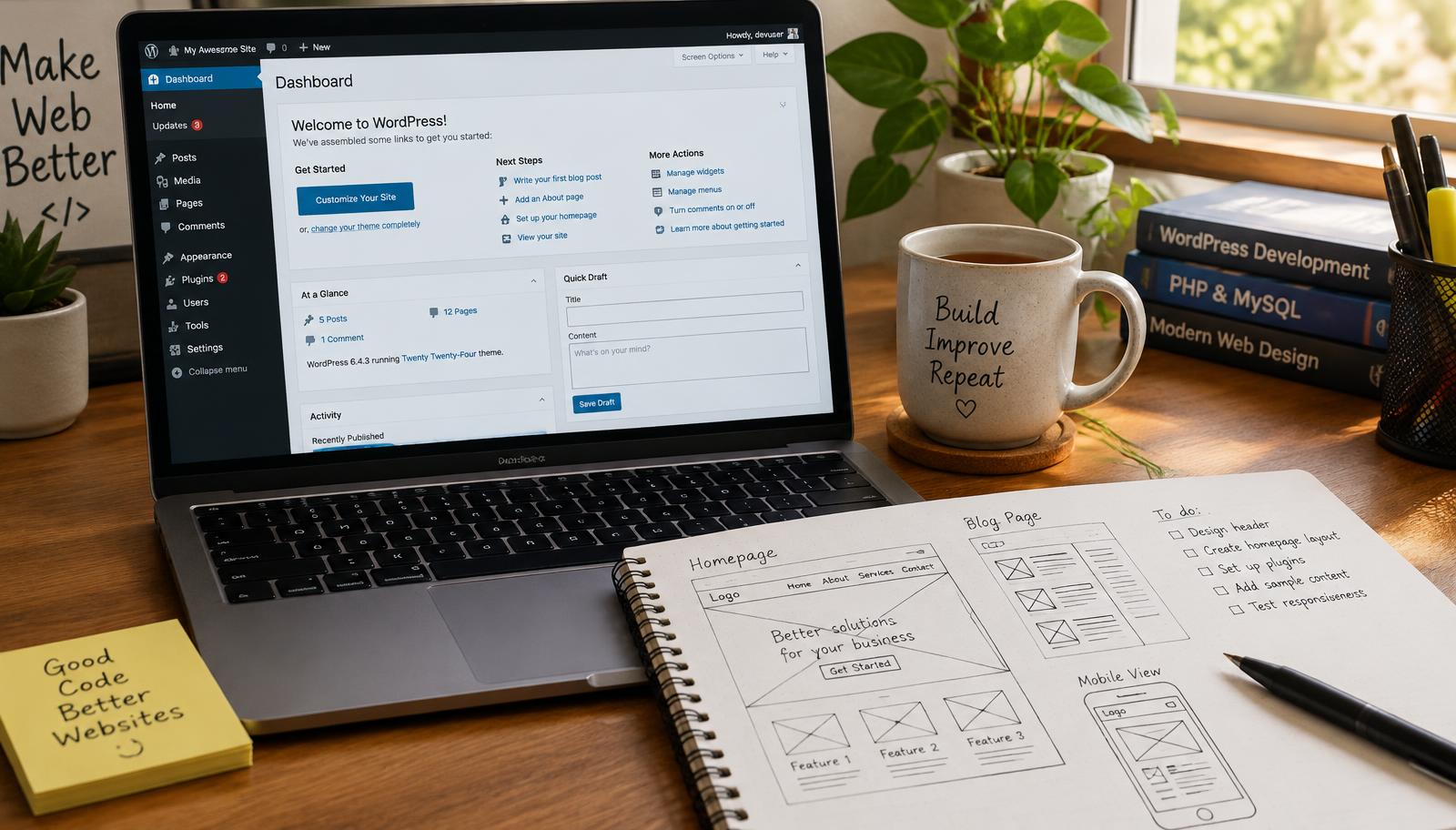
Troubleshooting Common Plugin Conflicts
Troubleshooting common plugin conflicts is essential for maintaining a smooth and efficient WordPress site. Plugins enhance functionality but can also introduce issues that disrupt performance or cause errors. Understanding how to identify and resolve these conflicts will help you ensure your website operates optimally.
Identifying Plugin Issues
Start by assessing the symptoms of potential plugin conflicts. Common indicators include slow loading times, error messages, or features not functioning as intended. To pinpoint the source of the problem, disable all plugins temporarily and reactivate them one by one. This method allows you to isolate which plugin is causing the conflict.
Next, check for compatibility with your current WordPress version and other installed plugins. Some plugins may not work well together or may require specific versions of WordPress to function correctly. Always refer to documentation provided by plugin developers for compatibility information.
Resolving Plugin Conflicts
Once you've identified a problematic plugin, there are several steps you can take to resolve the issue effectively. First, look for updates from the developer; many times, bugs are fixed in newer versions. If an update is available, install it and test your site again.
If updating doesn't solve the problem, consider alternative plugins that offer similar functionality without conflicts. Research user reviews and forums for recommendations on reliable replacements that integrate seamlessly with your existing setup.
Another approach involves modifying settings within conflicting plugins themselves. Sometimes adjusting configurations can eliminate incompatibilities without needing drastic changes like switching out plugins entirely.
Checklist for Effective Troubleshooting
- Assess Symptoms: Identify signs of conflict such as slow performance or error messages.
- Disable All Plugins: Temporarily deactivate all plugins to find the source of issues.
- Reactivate One-by-One: Turn on each plugin individually while monitoring site behavior.
- Check Compatibility: Ensure all active plugins are compatible with each other and your WordPress version.
- Update Plugins: Install any available updates from developers.
- Consider Alternatives: Look into different plugins if persistent issues arise.
- Adjust Settings: Modify settings within conflicting plugins where possible.
By following this checklist systematically, you can efficiently troubleshoot common plugin conflicts on your website.
Frequently asked questions
Web Design Burnley Team
We are a local web design team in Burnley. We write these guides from the projects we plan, build and maintain for Lancashire businesses.
Meet the team